
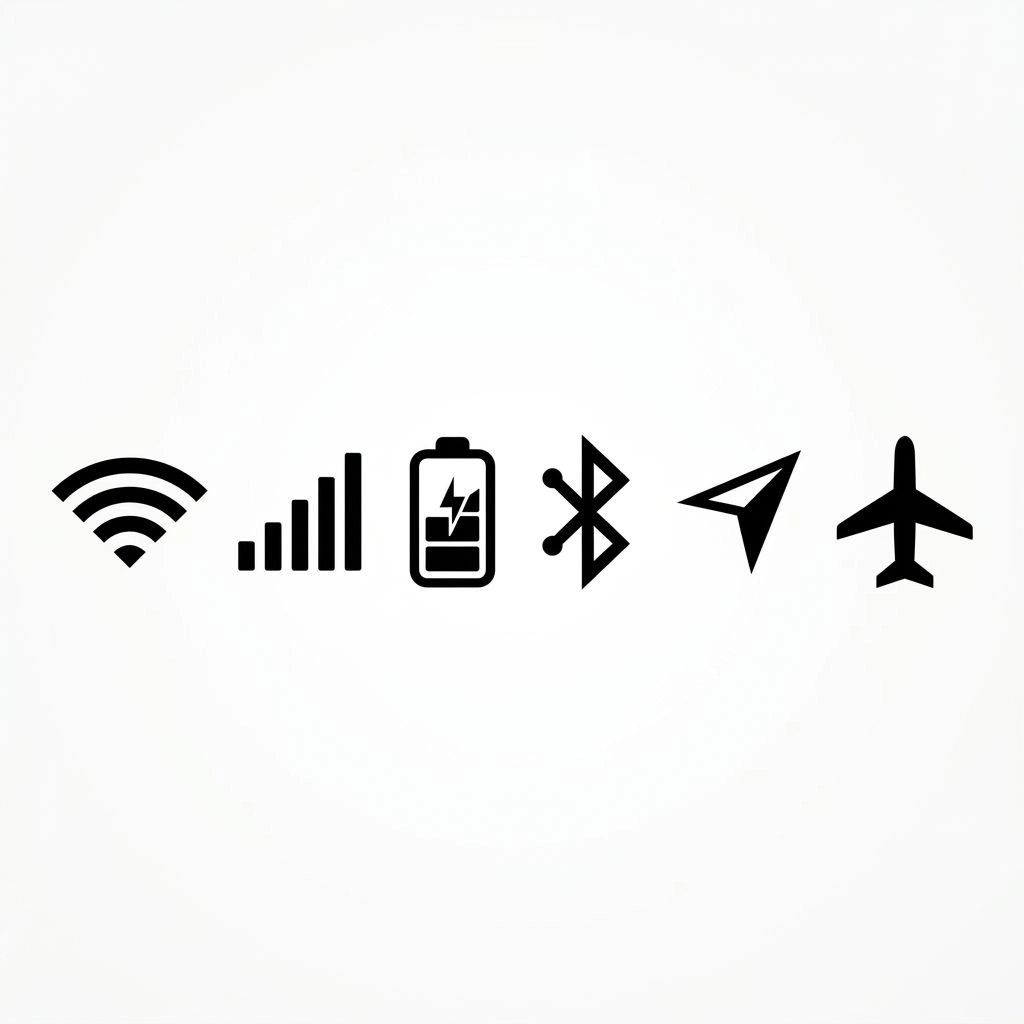
If you have ever looked at the top of your iPhone and wondered what a tiny symbol means, you are not alone. The iPhone symbols on top of the screen provide quick information about your network connection, battery, privacy, location, active features, and other phone functions. Some icons are routine, while others appear only when a particular feature is being used.
You may see familiar symbols such as Wi-Fi, cellular bars, 5G, or the battery icon. You may also notice an orange dot, green dot, location arrow, Focus symbol, SOS, recording indicator, or another unfamiliar sign. These indicators can change depending on your iPhone model, iOS version, carrier, settings, and what your device is doing.
This guide explains the most common iPhone symbols at the top of the screen in simple language. It also explains why a symbol may suddenly appear, whether you should worry about it, and what you can do when you no longer want an active indicator.
What Do the Symbols at the Top of an iPhone Mean?
The symbols along the top of an iPhone are generally called status icons or status indicators. They give you information without requiring you to open a separate app or search through Settings.
For example, a Wi-Fi symbol tells you that the iPhone is connected to Wi-Fi, while cellular bars indicate the strength of your mobile signal. A battery symbol tells you about available power, and privacy indicators can show when an app is using the microphone or camera.
Other symbols appear only while a feature is active. Navigation, screen recording, Personal Hotspot, Focus, AirPlay, calls, and similar activities can change what you see at the top of the screen.
The exact appearance and placement of some icons can differ between iPhone models and iOS versions. Newer iPhones may also use the Dynamic Island to display ongoing activities.
iPhone Symbols on Top of Screen: Quick Reference
The following table gives you a quick way to identify many common iPhone symbols.
| Symbol or Indicator | What It Means | Should You Worry? | What You Can Do |
| Cellular bars | Shows mobile signal strength | Usually no | Move to an area with stronger coverage if needed |
| 5G | A 5G cellular connection is available | No | Nothing normally |
| LTE | LTE cellular service is available | No | Nothing normally |
| Wi-Fi | Connected to a Wi-Fi network | No | Nothing unless the connection is not working |
| SOS | Normal cellular service is unavailable | Sometimes | Check your cellular connection |
| Airplane | Airplane Mode is active | No | Turn it off if you need normal cellular service |
| Battery | Shows battery level | No | Charge when necessary |
| Yellow battery | Low Power Mode is active | No | Turn off Low Power Mode if you want |
| Charging indicator | iPhone is receiving power | No | Nothing |
| Orange dot | Microphone is being used | Usually no | Check the active app if unexpected |
| Green dot | Camera is being used | Usually no | Check the active app if unexpected |
| Location indicator | Location Services is being used | Usually no | Review location permissions if unexpected |
| Focus symbol | A Focus mode is active | No | Turn off the Focus if you do not need it |
| Screen recording indicator | Screen recording is active | No | Stop recording when finished |
| Navigation indicator | Navigation is active | No | End navigation when finished |
| Personal Hotspot | Hotspot activity is occurring | No | Turn off Hotspot when finished |
| VPN | A VPN connection is active | Usually no | Check VPN settings if unexpected |
| Alarm | An alarm is set | No | Change or delete the alarm if needed |
| Orientation lock | Screen rotation is locked | No | Turn off the lock if you want rotation |
| AirPlay | Media is being sent through AirPlay | No | Stop AirPlay when finished |
Not every iPhone displays every symbol. The icons available to you depend on your device, carrier, software, settings, and current activity.
Cellular and Network Symbols
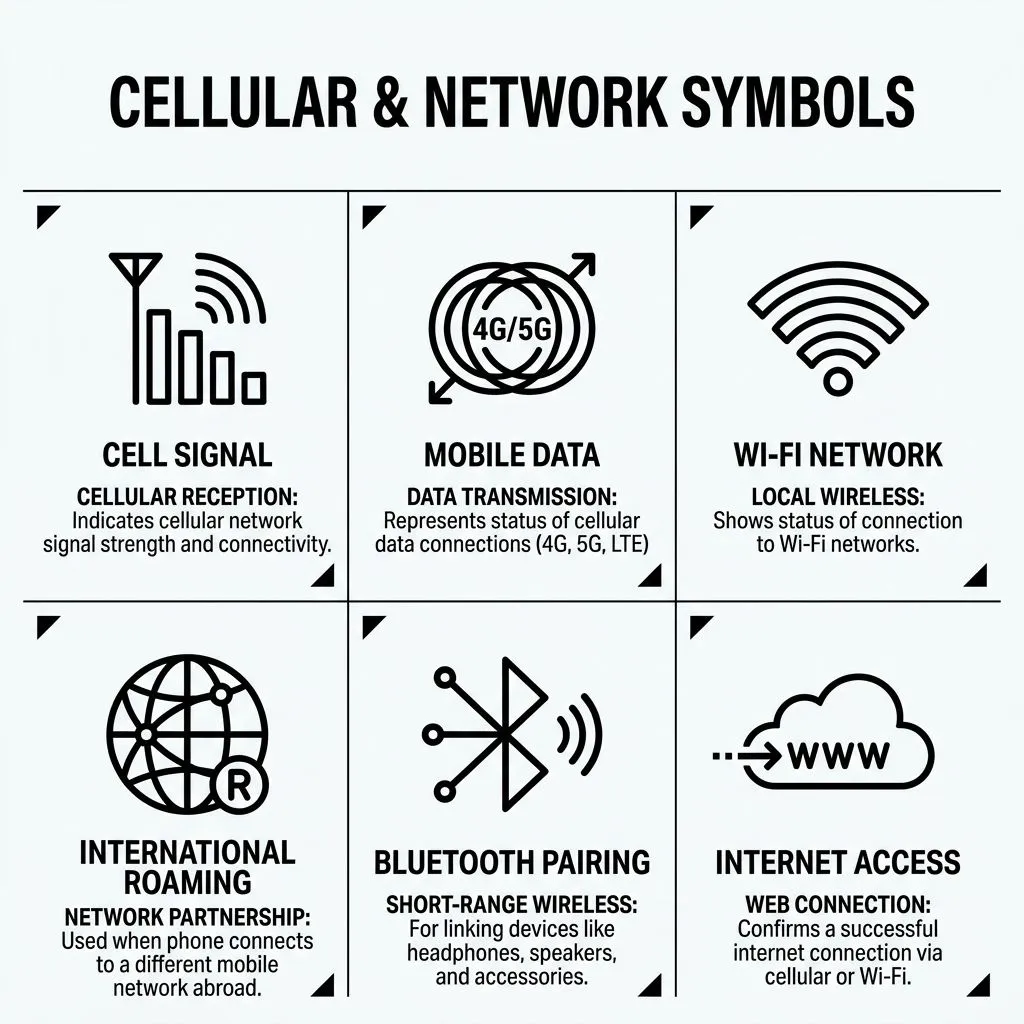
Some of the most frequently seen symbols at the top of an iPhone relate to cellular service and internet connectivity.
Cellular Signal Bars
The cellular bars indicate the strength of your connection to your mobile carrier.
When several bars are visible, you generally have a stronger cellular signal. When only one or two bars appear, your connection may be weaker.
A weak signal does not necessarily mean your iPhone has a problem. Buildings, underground locations, rural areas, crowded places, weather conditions, and carrier coverage can all affect signal strength.
If the bars suddenly decrease, try moving to another location and see whether the connection improves.
5G Symbol
The 5G symbol indicates that 5G cellular service is available to your iPhone under the current network conditions.
You may see different versions of 5G depending on your carrier and location. Some carriers use additional labels to distinguish their 5G services.
Seeing 5G does not guarantee that your connection will always remain on 5G. Your iPhone can change network technology as coverage and conditions change.
LTE and Other Cellular Symbols
Depending on your carrier and region, your iPhone may show labels such as LTE, 4G, 3G, E, or other network indicators.
These symbols describe the type of cellular network currently available.
If your phone changes from 5G to LTE, that does not automatically mean something is wrong. It can simply mean that LTE is currently the more appropriate or available connection.
Wi-Fi Symbol
The Wi-Fi symbol indicates that your iPhone is connected to a Wi-Fi network.
You may see it when connected to:
- Your home Wi-Fi
- Office Wi-Fi
- School Wi-Fi
- Public Wi-Fi
- A personal wireless network
If the Wi-Fi symbol disappears, your iPhone may have disconnected from the network or switched to cellular data.
If Wi-Fi appears connected but websites or apps do not work, the problem may be with the Wi-Fi network rather than the iPhone itself.
Wi-Fi Calling
A Wi-Fi-related calling indicator can appear when your carrier supports Wi-Fi Calling and the feature is being used.
Wi-Fi Calling can allow supported calls to use a Wi-Fi connection when cellular coverage is limited.
If you are unsure whether your carrier supports it, check your carrier’s current information and your iPhone’s Phone settings.
Airplane Mode Symbol
The airplane symbol means Airplane Mode is enabled.
Airplane Mode changes the wireless connections on your iPhone. If you see the airplane symbol and cannot make normal cellular calls or use cellular data, check whether Airplane Mode was accidentally turned on.
You can normally manage it through Control Center or Settings.
SOS or SOS Only
Seeing SOS or SOS only can be more important than seeing a normal network icon.
It generally means your iPhone does not currently have normal cellular service from your carrier. Depending on the situation and available networks, emergency calling may still be possible.
Possible reasons include:
- Poor cellular coverage
- A temporary carrier outage
- Being outside your carrier’s service area
- A SIM or eSIM problem
- Network-related settings issues
If SOS remains visible for a long time, check your cellular connection and contact your carrier if necessary.
Satellite Symbols
Some supported iPhones and services can display satellite-related indicators.
These symbols are associated with satellite communication or satellite availability rather than ordinary Wi-Fi or cellular service.
Satellite features depend on factors such as your iPhone model, region, carrier, software, and the specific Apple service being used.
Battery and Charging Symbols
Battery-related icons are among the easiest iPhone symbols to recognize, but some variations can still confuse users.
Battery Icon
The battery icon provides a quick indication of how much charge remains.
As the battery level falls, the visual amount inside the icon changes. Your iPhone may also display a numerical percentage if that setting is enabled.
A low battery does not mean the phone is damaged. It simply means the device needs to be charged.
Yellow Battery Icon
A yellow battery generally means Low Power Mode is enabled.
Low Power Mode is designed to reduce certain background activities and power consumption so that your iPhone can continue operating longer before you recharge it.
You can turn it off when you no longer need it.
Charging Indicator
A charging indicator tells you that the iPhone is receiving power.
You may see this after connecting a charging cable or using a compatible wireless charging method.
If the phone does not appear to be charging even though a charger is connected, check the cable, adapter, charging port, power source, and accessories.
Bluetooth Accessory Battery
When compatible Bluetooth accessories are connected, your iPhone may provide information about their battery status.
This can be useful when using wireless headphones or other supported accessories because you can check their remaining power without opening a separate application.
Privacy Indicators on iPhone
Privacy indicators deserve special attention because they can make users wonder whether an app is accessing their camera, microphone, or location.
What Does the Orange Dot Mean on iPhone?
The orange dot means that an app is using the microphone.
You may see it while:
- Recording audio
- Making a voice call
- Using a voice recording app
- Recording video
- Using an app that needs microphone access
The orange indicator is designed as a privacy feature. It tells you that microphone access is happening.
If you see the orange dot while intentionally using a microphone-related feature, there is usually nothing unusual about it.
If you do not expect microphone access, check which app you recently opened and review microphone permissions.
What Does the Green Dot Mean on iPhone?
The green dot means an app is using the camera, or the camera and microphone together.
You may see it when:
- Taking pictures
- Recording video
- Making a video call
- Using a camera-based application
- Using another feature that requires camera access
Like the orange indicator, the green dot is a privacy notification.
It does not automatically mean that your iPhone has been hacked or that someone is spying on you.
If it appears unexpectedly, investigate the active app and review which apps have permission to use your camera.
What Does the Location Arrow Mean?
A location indicator means that an app or service is using Location Services.
Location access can be necessary for:
- Maps
- Navigation
- Weather
- Ride-sharing
- Nearby services
- Location-based reminders
- Finding devices
- Other location-dependent features
A location indicator does not automatically mean that an app is continuously tracking you. Different apps can request location access for different purposes.
If you are uncomfortable with an app using your location, review its location permission in Settings.
Focus and Other Status Symbols
Some symbols indicate that you have deliberately enabled a feature.
Focus Symbol
A Focus symbol means that a Focus mode is active.
Focus can help reduce interruptions by managing notifications and other distractions.
You may have Focus modes for:
- Work
- Sleep
- Personal time
- Driving
- Do Not Disturb
- Custom situations
If you see a Focus-related symbol and don’t want that mode active, check Control Center or your Focus settings.
Orientation Lock Symbol
The orientation-lock indicator means your iPhone’s screen rotation is locked.
Normally, supported apps can rotate the screen when you turn your phone sideways. Orientation Lock prevents that behavior.
If your screen refuses to rotate when you expect it to, check whether orientation lock is enabled.
Alarm Symbol
An alarm indicator means you have an active alarm.
If you do not remember setting an alarm, open the Clock app and review your scheduled alarms.
You can edit or remove an alarm without changing other iPhone settings.
Lock-Related Indicators
Some lock-related symbols can appear in connection with device orientation or security-related states.
Do not assume that every lock-shaped symbol has the same meaning. Its exact appearance and location matter.
If you are unsure, compare the icon with Apple’s current status-icon documentation rather than guessing based only on its shape.
Active iPhone Session Symbols
Some symbols appear because an activity is currently happening on your iPhone.
Phone Call Indicator
When you are on a call, your iPhone can display an active-call indicator.
This reminds you that a phone conversation is still in progress.
If you notice the indicator after you thought the call ended, check whether the call is actually disconnected.
FaceTime Indicator
A FaceTime session can produce an active status indicator.
This is particularly useful because it helps you recognize that a communication session is still running.
Screen Recording Indicator
If screen recording is active, an indicator appears to show that your screen is being recorded.
Screen recording can be useful for:
- Creating tutorials
- Showing someone how to use an app
- Saving an on-screen demonstration
- Troubleshooting a problem
If you started recording intentionally, the indicator is expected.
If you no longer need to record, stop the recording through the appropriate control.
Personal Hotspot Symbol
A Personal Hotspot indicator can appear when hotspot functionality is active.
Personal Hotspot allows other compatible devices to use your iPhone’s cellular connection.
If you have finished sharing your connection, turn off Personal Hotspot when appropriate.
Navigation Indicator
A navigation-related indicator can appear when your iPhone is actively providing directions.
This may happen while using a mapping or navigation application.
If the symbol remains after you have reached your destination, check whether navigation is still active.
CarPlay Indicator
When your iPhone is connected to a compatible vehicle system through CarPlay, related activity can appear.
CarPlay allows supported iPhone functions to work through the vehicle’s display and controls.
If you see a CarPlay-related indicator, it generally means that your iPhone is connected to or interacting with the vehicle system.
AirPlay Symbol
The AirPlay symbol indicates that compatible media is being sent to another supported device.
For example, you may use AirPlay with a compatible television or speaker.
If media is playing somewhere else unexpectedly, check your AirPlay connection.
What Do Symbols Around the Dynamic Island Mean?
On supported iPhone models, the Dynamic Island can display information about ongoing activities.
This is different from simply having a traditional static status icon.
Depending on the feature and your device, the Dynamic Island can provide information about things such as:
- Calls
- Timers
- Navigation
- Audio playback
- Other ongoing activities
The Dynamic Island can change its appearance as an activity starts, continues, or ends.
This is one reason two iPhone users may see different information at the top of their screens at the same time.
Why Did a New Symbol Suddenly Appear on My iPhone?
A symbol usually appears because something about the current state of your iPhone has changed.
For example, you may have:
- Connected to Wi-Fi
- Started a phone call
- Opened the Camera
- Started screen recording
- Enabled Focus
- Started navigation
- Connected a Bluetooth accessory
- Turned on Personal Hotspot
- Connected through a VPN
- Begun charging
- Enabled Airplane Mode
- Started using a feature that requires location
- Opened an app that uses the microphone
In many cases, a new symbol is simply telling you that a feature is active.
The most important question is not just “What is this icon?” but also “What was I doing when it appeared?”
That can help you identify the cause quickly.
What Does a Strange Symbol at the Top of My iPhone Mean?
If you see a symbol you don’t recognize, don’t immediately assume it is an error.
Start by looking at three things:
Shape: Is it a dot, arrow, lock, battery, network label, or another design?
Color: Is it orange, green, yellow, white, or another color?
Location: Is it beside the time, cellular signal, Wi-Fi, battery, or Dynamic Island?
Then think about what you were doing immediately before the symbol appeared.
For example, an orange indicator after opening a voice-recording app is easy to explain. A navigation indicator after opening Maps is also expected.
How to Find an Unfamiliar iPhone Symbol
When an icon isn’t obvious, use a simple troubleshooting process.
Check What You Were Doing
Think about the most recent action you performed.
Did you start:
- A call?
- Navigation?
- Screen recording?
- Camera?
- Audio recording?
- AirPlay?
- Hotspot?
- Focus?
The answer may explain the symbol.
Open Control Center
Control Center provides quick access to many iPhone controls and can help you determine whether a feature is currently active.
It is especially useful when you are trying to identify a setting that you may have enabled accidentally.
Check Privacy Permissions
If you see an orange or green indicator unexpectedly, check your camera and microphone permissions.
For a location-related indicator, review Location Services and the permissions given to individual apps.
Check Focus
If you see an unfamiliar Focus-related symbol, open Control Center and check which Focus mode is active.
Check Navigation and Recording
If you see an activity indicator, check whether navigation or screen recording is still running.
Restart Only When Necessary
A restart can sometimes help when an interface element appears stuck, but you should first determine what the symbol represents.
A normal status icon usually doesn’t require a restart.
Can You Remove Symbols From the Top of an iPhone?
Some symbols can disappear when you stop the feature that created them, but not every status icon can or should be removed.
For example:
- Stop screen recording to remove the recording indicator.
- Turn off an unwanted Focus.
- End navigation after reaching your destination.
- Turn off Personal Hotspot when you are finished.
- Stop AirPlay when you no longer want to stream.
- Disable Airplane Mode when you need normal cellular service.
- Stop using a camera or microphone feature when finished.
For privacy indicators, don’t focus on hiding the indicator. Instead, determine which app is using the camera or microphone if the activity is unexpected.
Status indicators exist partly to keep you informed about what your device is doing.
Why Do iPhone Symbols Look Different on Different Models?
Not every iPhone displays its top-of-screen information in exactly the same way.
Differences can result from:
- iPhone model
- iOS version
- Face ID
- Home button design
- Dynamic Island
- Carrier
- Region
- Dual SIM configuration
- Available network
- Active features
- Connected accessories
A newer iPhone may display ongoing activities around the Dynamic Island, while an older model may present information differently.
Therefore, don’t assume that an icon must look exactly the same on every iPhone.
iPhone Status Bar vs. Control Center
The status bar and Control Center are related but different.
Status Bar
The status bar provides quick information about your iPhone’s current state.
It can show things related to:
- Cellular service
- Wi-Fi
- Battery
- Privacy
- Location
- Active features
Control Center
Control Center provides quick access to controls and settings.
You may use it to manage or check features such as:
- Wi-Fi
- Bluetooth
- Airplane Mode
- Focus
- Screen Recording
- Orientation Lock
- AirPlay
- Personal Hotspot
If you’re searching specifically for iPhone symbols on top of screen, focus first on the status bar rather than treating every Control Center button as a top-screen symbol.
Less Common iPhone Status Icons
Most people will only encounter a small group of common status symbols, but iPhones can display less familiar indicators too.
These can relate to:
- Accessibility features
- TTY
- Voice Control
- Satellite features
- Bluetooth accessories
- Media
- CarPlay
- Syncing
- Other active services
If you see one that isn’t familiar, don’t rely only on its shape. Check what feature you recently activated and compare the icon with Apple’s current documentation.
Do iPhone Symbols Change After an iOS Update?
They can.
Apple periodically changes its software interface, introduces features, modifies how information is displayed, and adds support for newer devices.
This means an icon you see today may not look exactly the same on an older version of iOS.
Your iPhone model also matters. A feature available on a newer device may not be available on an older one.
For this reason, current documentation is more reliable than an old screenshot or an outdated icon chart.
Are iPhone Symbols at the Top of the Screen Warnings?
Most are not warnings.
It helps to divide them into a few simple groups.
Normal Status Information
These include:
- Cellular signal
- Wi-Fi
- Battery
- 5G
- LTE
- Charging
They simply tell you about your current device or network state.
Active Features
These can include:
- Focus
- Navigation
- Screen recording
- Personal Hotspot
- AirPlay
- CarPlay
- Calls
They tell you that something is currently active.
Privacy Indicators
These include:
- Orange microphone indicator
- Green camera indicator
- Location indicator
They provide information about access to certain device functions.
Potentially Important Indicators
These can include:
- SOS
- No Service
- Unexpected privacy activity
These deserve closer attention depending on the situation.
Frequently Asked Questions
What are the symbols at the top of my iPhone?
They are status icons and indicators that provide information about your iPhone’s network, battery, privacy, location, and active features.
What does the orange dot at the top of my iPhone mean?
The orange dot indicates that an app is using your iPhone’s microphone. If it appears when you aren’t intentionally using a microphone-related feature, check which app is active and review microphone permissions.
What does the green dot mean on an iPhone?
The green dot indicates that an app is using the camera, or the camera and microphone together. It is a privacy indicator rather than automatically being a warning that your phone has been compromised.
What does the arrow at the top of my iPhone mean?
A location indicator means that an app or service is using Location Services. Maps, navigation, weather, and other location-based features can cause it to appear.
What does SOS mean at the top of an iPhone?
SOS or SOS only generally means that your iPhone does not currently have normal cellular service from your carrier. Check your signal, network, SIM or eSIM, and carrier service if the message remains.
Why is there a symbol next to the time on my iPhone?
The area around the time can display different indicators depending on your iPhone model, iOS version, settings, and current activities. Focus, privacy indicators, and ongoing activities are examples of information that may appear there.
Why did a new icon suddenly appear on my iPhone?
A new icon can appear when you activate a feature or when an app starts using a device function. Calls, navigation, screen recording, Focus, camera access, microphone access, location services, and network changes can all affect the symbols you see.
How do I remove a symbol from the top of my iPhone?
It depends on the symbol. You may need to stop the feature that is causing it, such as screen recording, navigation, Focus, AirPlay, or Personal Hotspot. Normal battery and network indicators cannot simply be removed because they are part of the iPhone’s status information.
Why don’t the iPhone symbols on my screen look like someone else’s?
Different iPhone models, iOS versions, carriers, settings, and active features can change which symbols appear and where they are displayed. Dynamic Island also changes how some newer iPhones show ongoing activities.
Are the iPhone symbols at the top of the screen dangerous?
Most aren’t. Many are ordinary status indicators. Orange, green, and location indicators are privacy notifications, while symbols such as SOS can indicate a connectivity issue that deserves attention.
Conclusion
The iPhone symbols on top of the screen are designed to give you quick information about what your device is doing. Cellular bars, Wi-Fi, 5G, battery, and charging icons are everyday status indicators, while Focus, navigation, AirPlay, screen recording, and Personal Hotspot symbols tell you that particular features are active.
Privacy indicators deserve special attention. The orange indicator points to microphone access, while the green indicator points to camera access. A location indicator tells you that Location Services is being used. These indicators help you understand how apps are interacting with important parts of your iPhone.
If an unfamiliar symbol suddenly appears, first consider what you were doing when it showed up. Check Control Center, active apps, privacy permissions, Focus, navigation, and other relevant settings before assuming that something is wrong.
Because iPhone interfaces can vary by model, carrier, region, and iOS version, an icon may not look identical on every device. When in doubt, identify the symbol by its shape, color, and location and then check the current information for your particular iPhone and iOS version.

Clara Miles
Hello! I’m Clara, a lifelong dreamer who finds magic in everyday moments. Writing has always been my way of exploring the world and understanding the people around me. I love creating stories that make readers laugh, cry, and reflect on life’s little surprises. When I’m not writing, you can usually find me sipping coffee at a cozy café or wandering through nature with a notebook in hand. My journey as an author is fueled by curiosity, imagination, and a love for connecting with my readers. Every story I write is a piece of my heart, and I hope it inspires yours too.
Books:
-
Whispers of the Heart
-
Shadows and Sunlight