
Symbol-based graphics make digital communication clearer, faster, and more engaging. Whether you use arrows, icons, signs, Unicode symbols, or decorative characters, proper image preparation helps them look sharp across websites, social media, and messaging platforms. However, large files, poor resolution, and incorrect formats can affect how these graphics appear online. By choosing the right format, using a PNG compressor, and following a few simple design practices, you can create symbol graphics that are easy to share, quick to load, and visually consistent.
What Are Symbol-Based Graphics, and Why Do They Matter?
Symbol-based graphics are visual elements that use recognizable signs, icons, or characters to communicate information. They can include mathematical symbols, arrows, currency signs, emojis, decorative text, and interface icons. Unlike detailed photographs, these graphics often rely on simple shapes, clean lines, and strong contrast to deliver a message.
Websites such as SymbolHubb help users explore symbols and special characters for digital communication. People use these elements in social media posts, website designs, presentations, profile descriptions, and educational materials. For example, a right arrow can guide readers toward additional information, while a checkmark can highlight a completed task.
Although symbols appear simple, their visual quality matters. A small icon with blurry edges or uneven spacing can make a design look unprofessional. Likewise, a symbol that appears correctly on one device may look different on another because fonts and operating systems handle certain characters differently.
Key takeaway: Symbol-based graphics communicate ideas through simple visual elements, but they need proper formatting and preparation to remain clear across digital platforms.
How Do You Choose the Right File Format for Symbol Graphics?
Choosing the correct image format is one of the first steps in preparing symbols for online sharing. Different formats handle transparency, scaling, color, and compression differently. The right choice depends on how you plan to use the graphic.
PNG for Sharp Symbols and Transparent Backgrounds
PNG stands for Portable Network Graphics. It is a raster image format that supports lossless compression, which means it can reduce file size without changing the image pixels. PNG also supports transparency, making it useful for logos, icons, and symbols placed over different backgrounds.
For example, a white arrow on a transparent PNG background can fit into a dark website header without showing an unwanted rectangular border. PNG also preserves clear edges and solid colors, which are essential for simple graphics.
A PNG compressor can help reduce the storage space needed for these files. Some tools optimize PNG data without changing pixels, while others use color reduction or other techniques that may slightly alter the image. Reviewing the result helps ensure that thin lines and small details remain visible.
Key takeaway: PNG is a practical choice for symbol graphics that need transparency, sharp edges, and consistent appearance.
SVG for Scalable Icons and Symbols
SVG stands for Scalable Vector Graphics. Unlike PNG, SVG describes shapes using mathematical instructions rather than a fixed grid of pixels. As a result, SVG graphics can scale to different dimensions without losing sharpness.
SVG works particularly well for website icons, interface buttons, arrows, and simple illustrations. A single SVG icon can appear sharp on both a mobile screen and a large desktop monitor.
However, SVG is not accepted by every social media platform or image upload system. In those cases, exporting the graphic as PNG provides a more widely supported option.
For detailed format guidance, developers can consult the MDN documentation on image file types.
Key takeaway: Use SVG when scalability matters and the platform supports it. Choose PNG when you need reliable raster graphics with transparent backgrounds.
How Can You Design Clear and Readable Symbol Graphics?
Good symbol graphics begin with a simple design. Because symbols often appear in small spaces, unnecessary details can make them difficult to recognize. Focus on shapes, spacing, colors, and contrast before exporting the image.
Start by selecting a symbol that your audience can understand. Common signs such as checkmarks, arrows, stars, and warning triangles are often recognizable. Decorative Unicode characters may look attractive, but their meaning is not always obvious. Use them carefully when communicating important information.
Next, consider the thickness of lines and the space around each symbol. Thin strokes can disappear when you reduce an image to thumbnail size. Similarly, placing symbols too close together can make them appear crowded. Leave enough empty space around each element so viewers can identify it quickly.
Color also influences readability. A light gray symbol against a white background may be difficult to see, especially on a mobile device. Strong contrast makes important shapes easier to recognize. For graphics that contain meaningful text or visual elements, the W3C Web Content Accessibility Guidelines provide helpful guidance on contrast and visual accessibility.
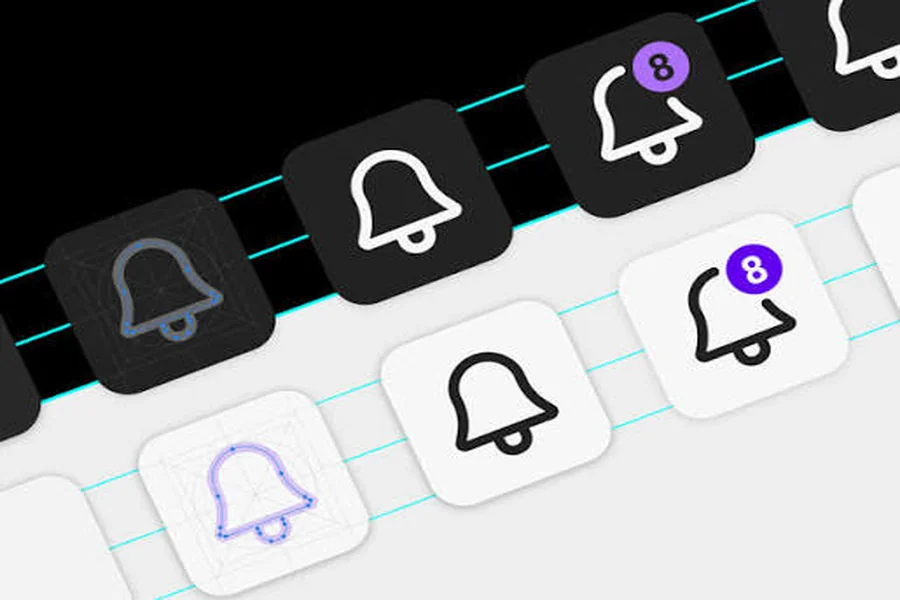
For example, imagine creating a set of navigation icons for a website. Giving every icon a consistent stroke width, color palette, and amount of spacing helps users recognize them as part of the same system.
Key takeaway: Keep symbol designs simple, use clear contrast, and maintain consistent spacing so graphics remain readable at small sizes.
What Image Dimensions Work Best for Online Sharing?
Image dimensions affect how clearly symbols appear on different platforms. A graphic that looks perfect on a desktop screen may become difficult to read when displayed as a small profile icon or mobile thumbnail.
Start by identifying where the graphic will appear. Website icons usually need smaller display dimensions than social media graphics. Larger promotional visuals may require more space for text, symbols, and supporting design elements.
Here are some practical starting points:
| Graphic type | Suggested dimensions |
| Small website icon | 32 × 32 or 64 × 64 pixels |
| Standard interface icon | 128 × 128 pixels |
| Social media square graphic | 1080 × 1080 pixels |
| Website illustration | 800 × 800 pixels |
| High-resolution icon asset | 512 × 512 pixels |
These dimensions are examples rather than universal requirements. Always check the specifications of the platform where you plan to publish the graphic.
When exporting raster graphics, create them at the required display size or at a suitable higher resolution for high-density screens. Avoid enlarging a small PNG significantly because this can create blurry edges.
Also, maintain the original aspect ratio. Stretching a circular symbol into an oval or compressing an arrow horizontally can change its appearance and meaning.
Key takeaway: Match image dimensions to the intended platform, preserve proportions, and avoid excessive resizing after export.
How Do You Reduce Symbol Graphic File Sizes Without Losing Quality?
Large graphics can slow down website pages, increase data usage, and make uploading files less convenient. Since symbol graphics usually contain simple shapes and limited colors, they are often good candidates for image optimization.
Compression reduces the amount of data needed to store an image. Lossless compression preserves the original pixels, while lossy compression reduces file size by making some changes to the image data.
For symbol graphics, preserving clean edges should remain a priority. Excessive color reduction or aggressive compression may introduce unwanted visual changes, especially around curves, thin lines, and small text.
Step-by-Step Guide to Compressing Symbol Images
- Export the original graphic. Save the design as a PNG at the dimensions you need.
- Remove unnecessary space. Crop large empty margins that do not contribute to the design.
- Choose an appropriate color mode. Simple symbols may not require millions of colors.
- Use an image optimization tool. Reduce file size while preserving important visual details.
- Compare the original and optimized files. Inspect small lines, transparent edges, and color transitions.
- Test the optimized graphic. Open it on a phone and desktop before publishing.
For example, a simple black-and-white directional icon may need only a small color palette. Reducing unnecessary color information can make its PNG file smaller without a noticeable difference.
Still, the smallest file is not always the best option. An icon that loads quickly but looks damaged can harm the viewing experience. Aim for a balance between visual quality and efficient delivery.
Key takeaway: Compress symbol images after choosing the correct dimensions and colors, then inspect the final file to protect its visual quality.
How Can You Keep Symbols Consistent Across Different Devices?
Symbols do not always display identically across devices. This is particularly important when using Unicode characters and emojis because their appearance can depend on the operating system, browser, and installed fonts.
A star, heart, or arrow may appear slightly different on Android, iOS, Windows, and other systems. Some symbols may also lack support in older fonts, causing a missing-character box to appear.
If you need a symbol to maintain an exact appearance, converting it into a graphic can be a practical solution. A PNG or SVG preserves the intended shape instead of relying on the viewer’s font.
However, image files introduce other considerations. You need to select suitable dimensions, provide alternative text where necessary, and make sure the image remains readable on different backgrounds.
When preparing symbol collections, use consistent design rules. Give related icons similar stroke widths, visual weight, spacing, and color choices. A unified appearance helps people understand that the graphics belong to the same group.
For example, if a set includes search, home, settings, and notification icons, mixing thick filled icons with very thin outlined icons can make the interface look uneven.
Key takeaway: Use image formats for symbols that must look identical across devices, and follow consistent visual rules for related graphics.
How Do You Make Symbol-Based Graphics More Accessible?
Accessibility helps people understand your graphics regardless of their abilities or the technology they use. Symbol-based designs can improve communication, but only when their meaning remains clear.
One important practice is adding alternative text, commonly called alt text, to meaningful images. Alt text provides a written description that assistive technologies can communicate to users who cannot see the image.
For example, an arrow used to indicate the next step may need text such as “Next step” rather than simply “right arrow.” The description should explain the symbol’s purpose in context.
If an icon is purely decorative and nearby text already provides the necessary information, an empty alt attribute may be more appropriate. This prevents screen readers from repeating unnecessary details.
Avoid relying only on color to communicate meaning. A red cross and green checkmark can be helpful, but labels such as “Incorrect” and “Correct” make the message clearer for more users.
Also, test symbols at realistic display sizes. An intricate character that looks attractive at 200 pixels may become unreadable at 20 pixels.
Accessibility should be part of the design process rather than something added only before publication.
Key takeaway: Use meaningful alt text, clear labels, suitable contrast, and readable icon sizes to make symbol graphics accessible.
What Should You Check Before Publishing Symbol Graphics Online?
A final review can prevent many common issues with online graphics. Even a well-designed symbol may appear incorrect if its background, dimensions, or file format does not match the publishing platform.
Before uploading, use this checklist:
- Confirm that the symbol communicates its intended meaning.
- Check that the file format works with the target platform.
- Verify image dimensions and aspect ratio.
- Inspect transparent backgrounds for unwanted edges.
- Reduce unnecessary file size.
- Test the graphic on mobile and desktop screens.
- Add descriptive alt text when the image communicates important information.
- Make sure you have permission to use any third-party icon artwork.
File naming also matters for organization and accessibility. A descriptive filename such as black-right-arrow-icon.png is more useful than a random name such as image123.png. Clear filenames help teams manage assets and provide search engines with additional context, though filenames alone do not determine search performance.
You should also consider copyright and licensing. Unicode characters themselves are different from original artwork created around them. An icon set may have specific license terms even when its symbols represent common ideas.
Finally, preview the graphic on the actual platform whenever possible. Some services resize, crop, or recompress uploaded images automatically.
Key takeaway: Review format, clarity, licensing, accessibility, and file size before sharing any symbol-based graphic.
Frequently Asked Questions
1. What is the best format for sharing symbol-based graphics?
PNG is useful for icons and symbols that need transparent backgrounds and consistent pixels. SVG is better for scalable graphics when supported by the platform.
Quick answer: Choose PNG for broad compatibility and SVG for graphics that need flexible scaling.
2. How can I make symbol graphics smaller without making them blurry?
Use suitable image dimensions, remove unnecessary transparent space, and optimize the file with a PNG compressor. Compare the result with the original to ensure that details remain sharp.
Quick answer: Reduce unnecessary image data while preserving the symbol’s edges and readability.
3. Why do some symbols look different on different devices?
Unicode symbols and emojis can use different font designs depending on the device and operating system. Exporting them as images helps maintain a consistent visual appearance.
Quick answer: Device fonts can change how text symbols appear, while image files preserve a chosen design.
4. Should I use transparent backgrounds for symbols?
Transparent backgrounds are useful when placing icons over multiple colors or layouts. However, a solid background may work better for graphics designed for one specific setting.
Quick answer: Use transparency for flexible placement, but check that the symbol remains visible on every background.
5. Do symbol graphics need alt text?
Meaningful symbol graphics generally need appropriate text alternatives. Decorative images can usually use empty alt text when they add no essential information.
Quick answer: Describe the purpose of meaningful symbols and avoid unnecessary descriptions for decorative ones.
Conclusion: How Can You Share Better Symbol-Based Graphics?
Preparing symbol-based graphics for online sharing involves more than creating an attractive icon. The file format, dimensions, compression settings, visual consistency, and accessibility all influence how people experience the final result.
Start with a clear symbol, select the right format, and export it at suitable dimensions. Then optimize the file, review its appearance across devices, and provide the context needed for people and search engines to understand it.
Whether you create directional arrows, decorative characters, social media graphics, or website interface icons, these practices help you produce visuals that remain clear and practical.
Final takeaway: The best symbol-based graphics combine clear design, efficient file sizes, accessible descriptions, and reliable formatting. Following these principles makes graphics easier to share, improves the user experience, and helps visual content fit naturally into well-organized, search-friendly pages.
